Python in Count has had a major upgrade
Written by The Count Team
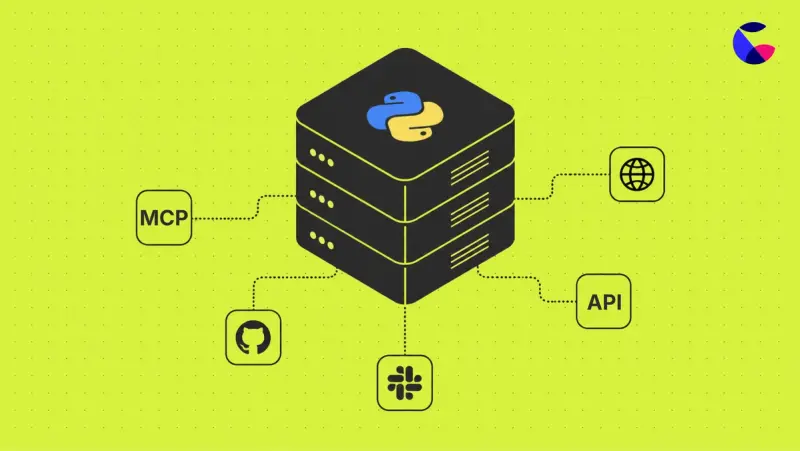
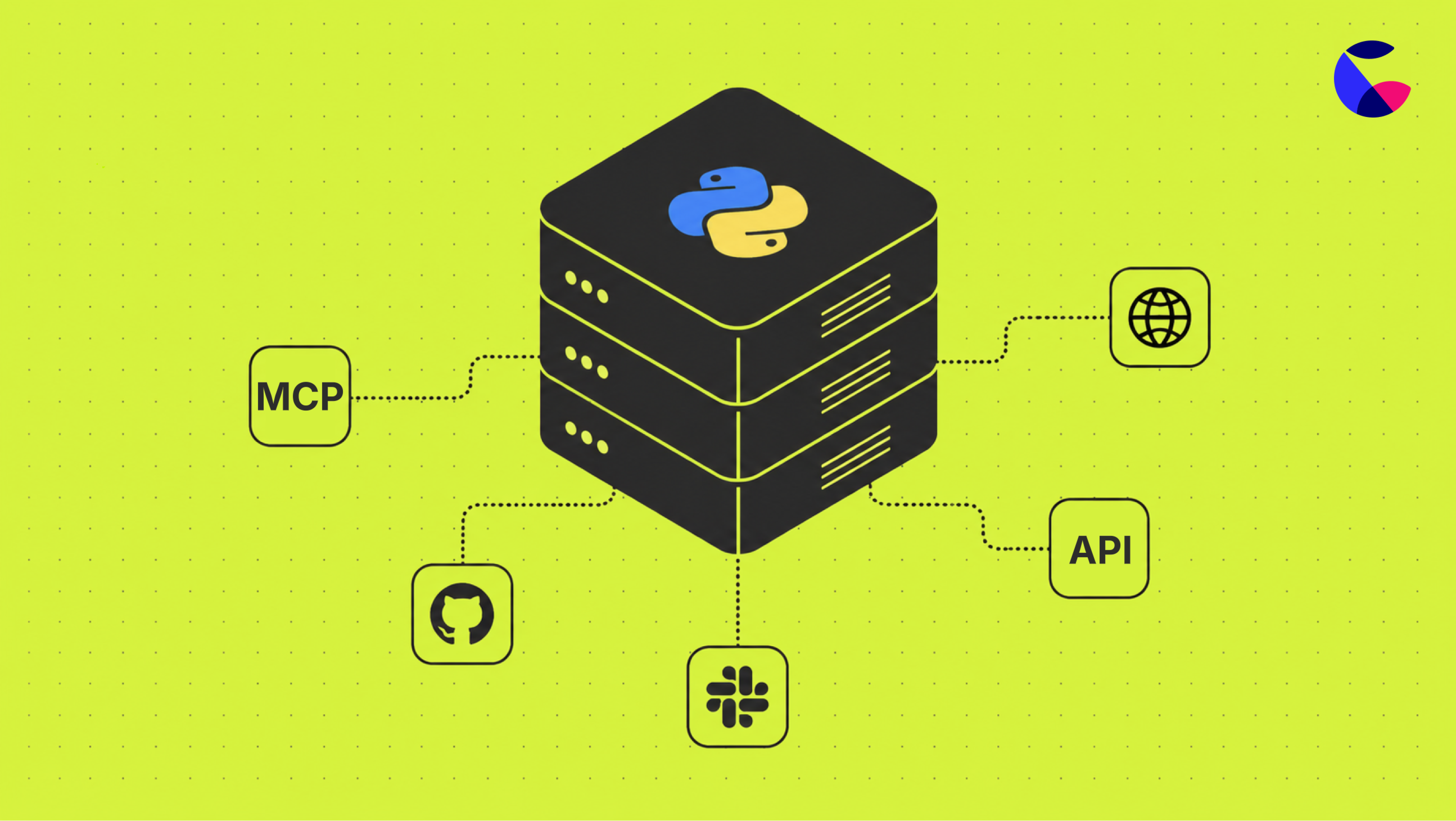
Run powerful Python in Count: install any package, handle big data, automate workflows, and let the AI agent write, run, and schedule your Python analyses.
Today we're launching a big upgrade to Python in Count 🚀. Install almost any package, and work with as much data as the job actually needs, not just whatever a browser tab could manage. And your Count agent can now write and run Python for you.
Here's what that looks like in practice.
Do the analysis you'd previously have taken elsewhere
Forecasting, clustering, a proper churn model, anything that needs a serious library and a serious amount of data. Before now, Python cells in Count meant a narrow set of packages and whatever memory your browser tab could spare, so this sort of work usually meant exporting data and opening a notebook somewhere else.
Not any more. Python cells can now install almost any public package from PyPI, and hold enough data in memory to work with it properly, the same way a SQL query has always been able to work through millions of rows.
That means the analysis that used to live in someone's local notebook, disconnected from the data, can now live on the canvas next to it.
Skip the bit where you write the code
The Count agent has always been able to write and run SQL for you. Now it can do the same with Python, reading it, writing it, reviewing it and executing it end to end. Describe what you want, cleaning a dataset, building a chart, running a model, and let the agent handle the implementation and generate any output you need.
Let Python do more than just report back
SQL cells in Count already run on schedules, refresh automatically, and can trigger an alert when something changes. Python cells now do exactly the same.
Put it together and a canvas can pull fresh data from a third-party API each morning, run it through a model, and post an alert when the result crosses a threshold, on the same schedule you'd set up for a query, no separate script running on someone's laptop, no manual export and re-import.
Already a Python user in Count?
A few practical things worth knowing before you dive in. Full detail on all of this is in the docs, this is just what you need to know upfront.
How this shows up depends on your workspace
- New to Python cells, or a new workspace? You'll just see the new server-based experience.
- Already using Python cells? You'll have both browser and server-based Python available. New canvases default to server-based Python, existing canvases keep using the browser-based cells they're already on. Either way, you can toggle any individual canvas between the two whenever you like.
Cells work independently, just like SQL
In the old browser-based cells, all Python cells in a canvas shared the same global scope, so a variable defined in one cell was available in the next.
The new server-based Python cells work more in the way you're used to with SQL cells. Each cell runs independently, and variables defined in one cell aren't available in another. If you want to bring in the output of another cell, use the cells variable, which exposes results as pandas DataFrames.
If you're switching an existing browser-based canvas across to server, this is the main thing to check, you may need to restructure code that leaned on shared variables. It's easy to toggle between browser and server to check.
Network access controls
Python cells can make network requests, controlled by your workspace settings. You can allow all domains, restrict to a specific list, or block requests outright. Check your workspace's setting before building anything that relies on a cell calling out to an API. Secrets (API tokens and the like) are supported too, kept out of your code and swapped in only when a request goes out.
That's it.
The work that used to mean a separate notebook, a laptop script, a manual export, can now just happen on the canvas, the same as it already does for SQL.
It's live now, go and try it.